When you open your file manager, you are usually located in your home directory.
But if you go two levels up, you will see this set of directories.
In this video, you will learn this Linux Directory Structure, how it is used by your Linux system
and how you can use these different directories.
Hello everyone, It's Average Linux User helping you to install,
configure and use Linux.
In this video, I will present this Linux Directory Structure.
This video is part of my " The command line tutorial" series,
but it also may be interesting to a wide audience.
So, I made a different thumbnail for this video and also named it differently from
all the previous episodes
Also, I won't use the terminal in this video.
Instead, I have made this presentation for you.
But you are of course are encouraged to open the terminal and explore all these directories youself
Let's get started.
Everything begins in your system from this directory.
All your folders, hard drives, USB drivers, everything is located in this root folder.
You cannot go above this directory.
Also, the root directory is designated by the slash sign.
The concept of the root directory may be difficult to understand for Windows users who are used
to see something like disk C, disk D and disk E. In Linux, every disk is a represented as
a folder that is mounted under this root directory.
This Linux Directory Structure may look like a mess, but believe me when you learn it,
you will realize how much sense it makes.
The /bin folder contains programs that are essential for the system to boot and run.
So, if you destroy this folder, your system won't boot and run.
These programs are stored in the binary format.
In other words, they are not in text format.
You cannot open and read the content of these programs.
The advantage of such format is that a computer can read and execute these programs very fast.
It is easy to guess from the name.
This folder is needed to boot your system.
It contains the Linux kernel, initial RAM disk image for drives need at boot time, and
the bootloader.
I also would like to point out that within this boot folder, you can find the grub folder
that contains grub configuration files.
If you watched my Arch Linux video, you should remember than we used this command to generate
the GRUB configuration file.
The boot folder also contains the Linux kernel.
Here, I need to introduce another important concept of Linux – everything is a file.
The /dev folder contains files for all devices your Linux is able to recognize.
If you have some Linux experience, you may recall that when you mount a hard drive, you
use a name such as /dev/sda1.
The sda is the name of a first hard drive recognized by your Linux kernel and it is
located in the dev folder.
When the disk is mounted, you see it as a folder in that mounting point.
You can also find here usb devices, cpu etc.
The /etc folder comprises all system-wide configuration files and some shell scripts
that are executed during the system boot.
All files here are text files, so they are human readable.
If you ever did any system-wide configuration, you probably edited some files here.
For example, there is /etc/fstab file that contains a table of storage devices and their
mounting points.
Again if you followed my Arch Linux installation and configuration tutorial, we did many setting
in this /etc folder.
The home directory contains a home folder for each regular user on your Linux system.
For example, you can see here the folder ALU, which is my home folder.
And one more folder that belongs to another user, whom I named User2.
So, the home folder of every user is named by its username.
You have as many folders as many users you have on your system.
These users' folders are where users store their private data such as documents, videos,
picture, music etc.
When you open your file manager or your terminal by default you are located in you user's
home folder.
You already know the /bin directory that contains programs, this /lib folder contains libraries
required by those programs from the /bin folder.
A library is a set of functions that are shared between programs.
Thus, this /lib folder is also essential for your system to work correctly.
You will have this directory if you use the ext4 file system.
Most of the modern Linux distros use ext4, so most likely you have this folder.
This is a file system specific folder that is used for data recovery in case of file
corruption.
Unless something bad has happened, this folder should be empty on your system.
This /lost+found folder is produced on every separate partition.
So, if your /home folder is on a separate partition, you should have this /lost+found
folder in your home directory too.
This folder is used for automatic mounting of removable media such as USB drives, CD-ROM
etc.
For example, if your system is configured for automatic mounting, when you insert a
USB drive it will be mounted to this folder.
The /mnt folder is similar to the /media folder, it is also used to mount devices, but usually,
it is used for manual mounting.
You, of course, can manually mount your devices to /media, but to keep some order in your
system it is better to separate these two mounting points.
This folder is not essential for your system to work.
Usually, it is used to install commercial programs on your system.
For example, my Dropbox installation is located in this folder.
This is a virtual file-system maintained by the Linux kernel.
Usually, you do not touch anything in this folder.
It is needed only for the kernel to run different processes.
This is the home directory of your root user.
Don't mix it with the / root directory.
The / directory is the parental directory for the whole system, whereas this /root directory
is the same as your user home directory but it is for the root account.
If you log in as a root, you will be located in this directory by default.
This is a folder for private data and account specific setting of your root account.
The /run is a recently introduced folder that is actually a temporary file-system.
It is used to store temporary files very early in system boot before the other temporary
folders become available.
Similar to /bin this folder contains binaries for essential system tasks but they are meant
to be run by the super user, in other words, the administrator of the system.
This directory contains service files installed on your system.
For example, if you installed a web-served on your Linux system, it will be located in
this folder.
This is just a place where programs store temporary files on your system.
This directory is usually cleaned on reboot.
This is probably the largest folder after your home folder.
It contains all programs used by a regular user.
I would like to stop little more on sub-directories of this /usr folder.
/usr/bin contains the programs installed by your Linux distribution.
There are usually thousands of programs here.
The libraries for this /usr/bin executables are located in the /usr/lib folder.
The /usr/local doesn't have any programs by default, but if you compile and install a
program system-wide it will be placed here.
The most useful folder is /usr/share.
It contains all the shared data used by the programs from /usr/bin.
All default configuration files, themes, icons, wallpapers, sound files are stored here,
One more folder I would like to mention here is the /usr/share/doc folder, where you can
find the documentation files for programs installed on your system.
The /var contains files that are of variable content, so their content is not static and
it constantly changes.
For example, this is where the log files are stored.
If you don't know, a log file is a file that records all events happening in your
system while it is running.
These log files often help to find out if something is not working correctly in your
system.
Now you have some clue about all those folders in your Linux system.
Please, feel free to add anything in the comment section in case I missed something.
Thank you for watching.
 For more infomation >> First Alert: Light showers tonight, clouds to clear later Sunday - Duration: 2:07.
  For more infomation >> Thousands turn out for Royals' garage sale - Duration: 0:45.
  For more infomation >> Highlights: Nebraska gets blown out by Minnesota - Duration: 3:16.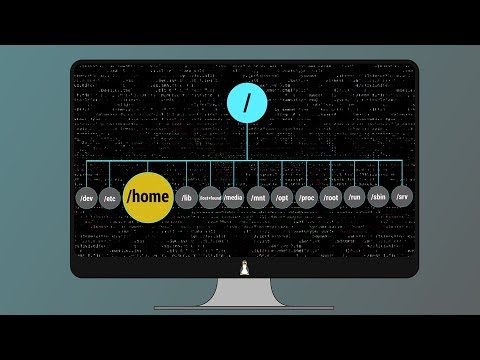


 For more infomation >> Tại Sao Dù Đắt Tới Mấy Cũng Nhất Định Phải Mua Chôm Chôm Về Cho Cả Nhà Ăn - Duration: 18:40.
  For more infomation >> 이봉원 박미선 딸 사업 빚 새누리당 집공개 - Duration: 6:26.
 For more infomation >> 연예인 음주운전, 권상우와 김지수의 차이? - Duration: 5:50.
  For more infomation >> A2A - Duration: 15:43.


Không có nhận xét nào:
Đăng nhận xét