South Korea
Jeju Island
Seogwipo-si, Andeok-myeon
Hello Kitty Island
Generating a bright girly preset.
Hi, this is HS.
The photos today were taken in Hello Kitty Island in Jeju.
It's a good spot for a family vacation,
and I'd like to recommend the place as a date place as well.
There are a lot of photo spots inside the place.
However, as a photographer,
the environment is not good to take photos.
Thus, I made this girly preset.
The reason why I mentioned the place wasn't good to take photos was,
because of all the useless small lights.
I'll prepare a video about using lights later,
but in a nutshell,
there are some lights in this photo.
Natural light from the right side,
while there are Fluorescent lamps inside the building.
Because the temperature of each light is different, adjusting White Balance is difficult.
One more problem of this place is it's too dark to take photos.
In case of taking photos of adults,
if the taken photo is too dark, it's possible to take the same photo again after adjusting the camera.
However, children and pets won't stay there.
Especially girls will be just busy with looking around all the Kitty dolls,
so they won't give you a chance to take their photos with adjusting the values of camera.
Thus, I recommend you to take pictures with your camera or phone,
and adopt the preset.
I'm sure all the ladies will love this.
As you know, I've already made the preset.
From now on, I'll adopt the preset to other photos.
Let's start with this photo.
Adopt the preset first,
<Original VS Edited>
From the original photo,
you can see the lights with different temperature,
and the color of the skin looks dark.
With using the preset, the skin will become brighter,
and the photo looks like a film photo.
As you know, subtle modifications are still needed after adopting a preset.
If the photo is too bright, decrease 'Exposure'.
Using 'Radial Filter' will be a good choice to decrease exposure of background.
Let's use 'Radial Filter' several times to make the photo look natural.
After that, rub the face and neck with 'Adjustment Brush' whose 'Exposure' is a bit increased.
With comparing to the original,
the photo became lovely.
Since I've changed colors to make the photo look girly,
and also changed the skin tone as well,
the preset will be helpful for editing a photo of your beloved one.
The next photo is a failed one.
The meta data of this photo are ISO 100, F 2.0, and 1/100 sec.
The focus is not accurate because it was dark, and she was moving when I took this photo.
Anyway, I'll work with it.
From this photo, right side is brighter and the subject(my daughter) is darker.
Adopt the preset anyway.
After adoption, the photo becomes brighter and looks like a film photo.
Let's decrease 'Exposure' since it's too bright.
You may remember how to adjust horizon and vertical.
Let's move to 'Transform' tab, and click on 'Auto'.
I'll crop the photo a bit.
After that, I'll apply vignetting by decreasing 'Amount' from 'Effects' tab.
Next, decrease 'Exposure' of backgrounds by using 'Radial Filter' several times.
By using 'Graduated Filter',
you can express a sense of distance.
I'll crop the photo once again.
After that, lighten up the face by using 'Exposure' increased 'Adjustment Brush'.
And then, give a focus to her face by using 'Radial Filter'.
For this filter, check on 'Invert' so that the center becomes brighter when increasing 'Exposure'.
<Original VS Edited>
As you can see, she becomes brighter while the background is not changed much.
I'll decrease 'Exposure' a bit.
With comparing to the original,
you can see the differences.
Let's move on to the next photo.
Firstly, click on 'Auto' from 'Transform' tab to adjust horizon, and vertical.
I'll adopt the preset after that.
With comparing to the original, red parts have been changed a lot.
Original
Edited
Her skin looks brighter than the original one.
Let's edit a bit more.
Adjust 'Highlights' and 'Shadows' first.
Lighten up the face by using 'Adjustment Brush'.
Add focus on her face with decreasing 'Exposure' of background by using 'Radial Filter'.
Because the color of the wall and her dress is red, the focus is distracted.
Thus, I'm going to use 'Graduated Filter'
to decrease 'Exposure' of background.
Since the light comes from the upper right,
using 'Graduated Filter' in opposite direction can add focus on the subject.
For the next, check on 'Invert' of 'Radial Filter', and increase 'Exposure' of it.
Because she becomes too bright, let's decrease 'Exposure' of entire photo a bit.
Original
Edited
The photo gives 'film-like' feel, and she got the attention.
Let's move on to the next photo.
Adopt the preset first.
Decrease 'Exposure' a bit,
and increase 'Exposure' of the face by using 'Adjustment Brush'.
You can see the noise from the photo after adopting the preset.
I've increased the noise to give the film-like feel,
so if you don't want the noise, decrease 'Amount' of 'Grain' from 'Effects' tab.
Let's use 'Graduated Filter' to add focus on her.
'Radial Filter' is also needed.
<Original VS Edited>
Let's adopt the preset to the next photo.
Decrease 'Exposure' a bit,
and decrease 'Exposure' of background by using 'Radial Filter'.
Let's adopt the preset to this photo as well.
<Original VS Preset adopted>
Let's increase 'Exposure' a bit,
and decrease 'Exposure' of background by using 'Radial Filter',
so that she can catch the eye.
Let's move on to the next photo.
Adopt the preset first.
Since this photo doesn't need to be edited a lot,
I'll decrease 'Amount' of 'Post-Crop Vignetting' from 'Effects' tab,
and increase 'Exposure' of her face by using 'Adjustment Brush'.
<Original VS Edited>
Let's move on to the next photo.
Adopt the preset.
This spot is also not a good place to take photos
, since natural light comes from down while fluorescent light comes from up.
Let's adopt 'Radial Filter' to decrease 'Exposure' of background.
To make it natural, you need to use different sizes of radial filters.
After that, use INVERTED 'Radial Filter' with increased 'Exposure'.
Since the subject look too bright, let's decrease 'Exposure' of entire photo a bit.
<Original VS Edited>
Add focus on her by using 'Graduated Filter'.
Original.
Edited.
The next photo is Hello Kitty who wears Hanbok(Traditional cloth of Korea).
After adopting the preset,
it becomes like a film photo.
I'll simply edit it.
The meta data of this photo is ISO 800, F2.0, and 1/60sec,
which means that it is taken from a dark place.
It was hard to take.
But with the preset,
it becomes like a film photo.
Let's decrease 'Exposure' a bit,
increase 'Shadows', and decrease 'Highlights'.
Slightly lighten up the face with 'Adjustment Brush'.
Decrease 'Whites', and increase 'Blacks'.
I'll crop it a bit.
Gives a bit of vignetting by decreasing 'Amount' of 'Post-Crop Vignetting' from 'Effects' tab.
Let's decrease 'Exposure' of background by using 'Radial Filter'.
After that, let's increase 'Exposure' of the subject by using INVERTED 'Radial Filter'.
Since this photo was taken in a dark place,
there's no need to make it as a bright photo.
Once increasing 'Exposure' to make it brighter, all the balance will be destroyed.
It's up to you, but I'll keep it dark.
<Original VS Edited>
You can see her face from the edited one.
Let's adopt the preset to the next photo.
Increase 'Exposure' of face by using 'Adjustment Brush'.
Let's move on to the next photo.
The metadata of this photo is
ISO 800, F1.4, 1/25 sec.
It was taken from a very dark place.
Let's adopt the preset first.
Next, decrease 'Exposure' of background by using 'Radial Filter'.
That's all for today.
Let's go back to the first photo.
This is the first photo spot of this place.
Thus, most people take photos here.
Whichever camera you use for taking pictures,
the preset will help you to edit the photos,
and all the ladies will love it.
Since it's Hello Kitty Island, all the colors are pinky.
It's a good place for family or as a date.
Try to go and take a lot of memorable photos.
The place has its own restaurant as well.
You can also watch a 3D movie,
There is a souvenir shop on the ground floor.
Fortunately my daughter bought a doll with her pocket money,
but you still need to be careful since there are a lot of items in the shop.
Today, I've prepared a girly preset.
If you've visited a place decorated with pink color, use this preset.
You can download the free preset from 'description'.
If you like this video, please vote the video,
subscribe me and set an alarm.
Thank you for watching a long video.
 For more infomation >> «Jeder Rappen zählt» 2018: Die Highlights vom Montag - Duration: 2:30.

 For more infomation >> «Jeder Rappen zählt» 2018: Die schönsten Geschichten am Spendenschlitz - Duration: 2:40.
  For more infomation >> RITUALES DE NAVIDAD con Yolanda Soria y Luis Palacios - Descifrando la Matrix - Duration: 1:28:46.
 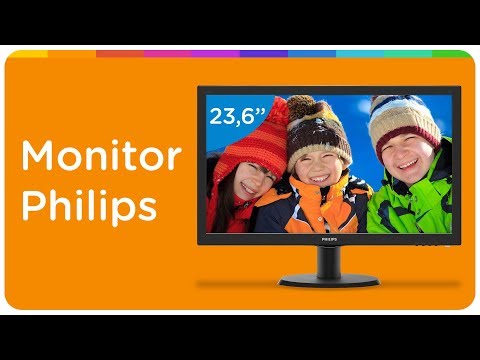 For more infomation >> Monitor Philips LCD 23,6" - Duration: 0:53.
  For more infomation >> First Alert Weather - Duration: 3:49.


 For more infomation >> Awesome View - Duration: 1:16.


 For more infomation >> ‼️ Cuidado ‼️Con la comunión en la mano - P LUIS TORO - Duration: 7:03.

Không có nhận xét nào:
Đăng nhận xét