Hello again! This timer we're going to import an OBJ file with textures,
like the one we're seeing now.
This file comes from TURBOSQUID.com (link at the description).
First, let's have a look to its number of faces.
Despite it's not a big number, 130K faces,
if we have several models like this in SketchUp,
it would be hard to move, copy, etc. For this reason, we're going to open it with Blender.
It's a free software, we'll use Blender to simplify the number of faces
and to export the file to SketchUp maintaining its textures.
This file is free, you can find the link at the description.
Furthermore, we're going to do a second exercise: these sneakers.
This model is made by PBR Scans and it's also free.
The thing is it has more than a half million faces.
It's impossible to import "as is" to SketchUp
just because its number of faces.
SketchUp can't handle this kind of geometries. So we're going to simplify these models
but we'll keep a good level of quality.
Once we get the simplified model, we'll take it to SketchUp.
So let's do this!
I'm going to import the 3D model of that, guy
so I'm going to press "A" twice to select all these things.
Then I'm going to press "Delete", I have to press this button to confirm it.
That's the way I clean this template.
That's the hardest thing I have to do in Blender ;)
Now I'm going to import the file. File > Import > Waveform (OBJ)
I have my file in the Desktop, over there...
So I have to select this OBJ file, then I have to press "Import OBJ" (it's under the webcam capture)
It takes its time, let's wait...
First thing we see it's some kind of weird surface. It's because we're really close to the model.
We have to press "." (decimal point) in the NUMPAD to zoom it out.
Now we can see the whole model.
Now we have select the model by right-clicking on it.
Here I have a folder with all the files I've downloaded from TurboSquid.com
I have to look for the Diffuse map,
then I'm going to drag it to the surface of the model.
It's going to load in a few seconds. Now I can hide my window.
Now I'm going to simplify this file. As I've said before, it has 130K faces or so.
If I import this file "as is" to SketchUp,
It would be hard to move, to copy or things like that.
And if I have more than a model like this in my SketchUp file...
then it's going to be really hard to do anything.
So... I have to go over there, to the Modifiers tab
I'm going to add a modifier called "Decimate" to this geometry.
It's for getting a simplified mesh.
Here it says there's 129,824 faces. This "Ratio" is to simplify the mesh.
Ratio 1 means no simplification. Ratio 0.5 means faces reduced to its half.
If I write 0.2 it's like we keep just the 20% of the faces.
That means a big shortening of the number of faces, from 130K to 45K or so.
We still can simplify it a little bit...
A smaller Ratio brings a greater reduction in the number of faces.
A 0.15 ratio produces 35K faces, which is nice...
We're done with Blender. So we have to go to File > Export > Collada (.dae)
I'm going to save this file as Collada (.dae), this file format works great in SketchUp.
I'm going to save this file in the same folder, here I have the rest of the files.
I only have to check this,
That's really important. Let me minimize this tabs before...
Here in Collada Options, I MUST check Apply Modifiers
to apply the Decimate to the exported file.
Here in Texture Options, I have to pick UV textures from this dropdown list.
Now I just have to press Export Collada (it's under the webcam capture).
Done! Let's go to Sketchup to complete this exercise.
Here in SketchUp, I have to go to File > Import and select Collada (.dae) from the dropdown list.
Now I have to search where my folder is...
Then I'm going to press "Import". It will take a second or two...
Here it is! And it comes with its textures!
Let's orbit around it and zoom it out... We're now seeing all its edges,
We can select it and then use Soften Edges to give it a smooth look...
Here I pick this one...
that's to see more or fewer edges...
You can set any Soften Edges parameters you like...
The thing is we have now a BIG trouble...
if I set a front view... (I'm using parallel projection)
We can see this fella is 173 meters tall.
It's completely out of scale. We're going to fix this quickly.
We have to select it, set the Scale Tool (S) then I use its upper scale handler.
I have to keep pressed "Shift" to maintain the proper proportions
I have to keep pressed "Shift"...
Now I just have to left-click anywhere. It doesn't matter if the scale is wrong.
For example here... That's fine.
Now I just have to write 180cm (or 1,8m) It's VERY important to include the units.
That's the way we get the right scale.
If we zoom the model, and we get the front view...
I can use the Tape Measure Tool
to get a guide. I'm setting 1,8m as a distance ...
I'm also going to show its size From there to there...
it's size is 1,8 meters. That's it, we did it.
Last thing we can do is... Right Click > Scale Definition
Now SketchUp knows that's the proper size to insert this component.
If I insert a copy of this from "Components", it will have this size.
Once we've completed this exercise, I'm going to do it again using the sneakers 3D model.
It has a lot more faces (500K), but we just have to follow the same steps.
Well, we're back to Blender. I'm going to bring the sneakers...
Same steps as before: once I'm here...
I have to press "A" twice to select all these stuff
Now I press "Delete"
I have to confirm this... Now I have a clean file.
Next thing I'm going to do is bringing the OB Jfile.
File > Import > Waveform (.obj)
I have to search where it is... Here! PB171_sneakers_hi.obj
It's going to take a while. I'm going to edit this part to avoid the wait.
It's going to look like a fast import... It's not.
Here it is. Now, at the keyboard, we have to go to the NUMPAD
and press "." (decimal point) to get a "zoom extends" of the sneaker.
Now I have to select it, so righ-click on the sneaker.
The contour color was orange, now has become yellow.
That means it's selected. As before, I'm going to bring my folder over there...
There are all the files I've downloaded from TurboSquid.com
I have to select this one, the diffuse map and I have to drag and drop it on the sneaker.
Just a second... Maybe two...
Now we have to simplify the model.
I have to go to this tab, the one with this tool icon.
Thats the Modifiers tab. I have to choose "Decimate".
In Faces, I can see there's...
there's 521,298 faces, more than half million.
SketchUp couldn't handle this model,
so we have to simplify it before.
If I set 0.1 as our Ratio, we'll keep just 50K from 500K faces
It's still a big number. A 0.05 ratio means 25K faces or so.
Let's write 0.05
It's about 26K faces... This model doesn't have detailed shapes,
just surfaces, so maybe we can get a fewer Ratio.
What about 0.04 faces?
It's going to be about 20K faces or so... 20,850 faces. Fine.
OK! We've simplified this model.
Now I have to go to File > Export > Collada (.dae)
I'm going to save this as a Collada file...
Saving the file on its folder...
I'm going to minimize these tabs...
In Collada Options I have to check Apply Modifiers,
If we don't check this, we'll get the whole geometry, 500K faces.
By the othere hand, here in Texture Options, we have to select UV textures from the dropdown list.
That's the way I save the texture positions.
Exporting... and done!
Now let's go to SketchUp.
Here in SketchUp, I have to go to File > Import
I have to search my file
Here I have to set Collada (.dae)
If we don't do this we couldn't see our Collada export
Perfect! Now it's going to be imported...
Just a minute...
Here it is! I'm going to place it there.
First, I'm going to set it's proper orientation
Look at this blue bounding box, if I move the pointer to this side
suddenly appear four red little crosses.
They allow me to rotate the bounding box without using Rotate Tool.
I'm going to set this angle to zero.
Now I'm going to soften edges, as much as I want.
Now I want to scale the sneakers to 30cm large
I have to go to the Scale Tool (s)
I have to pick this handler and keep pressed the Shift key,
that's the way to scale uniformly. Now I set any scale, like this.
VERY important! Once I've set a scale, now I have to write 30cm including the units.
If we just write 30, we'll get a 30 times bigger model.
So mind the units! It can be mm, cm, m, inches, whatever.
Well, I write 30cm then I press Enter and that's it.
I'm going to move this to the origin...
From there... to there...
Zoom Extents... and there it is.
We can copy the sneaker and get a symmetrical one. I have to go to Move Tool (m)
The I have to push Control to get duplicates.
I'm going to copy this along the Red Axis. That place is fine.
Now I'm going to use the Scale Tool (s), This is the right handler...
and the scale must be -1
I can also use these red little crosses again.
Let's go to Perspective... Zoom Extents...
That's the final result.
It's a nice level of detail, and we can handle without any worries.
If we need a greater level of detail,
then we have to use a render software like V-Ray for SketchUp or Thea Render
and introduce the original file through a proxy file.
If we didn't need a really detailed model,
then we have to simplify our files and import them to SketchUp.
Well, my friends, that's all!
Just remember, you can find the links to the files I've used at the description of this video.
By the way! A last minute thought!
We've completed these exercise using OBJ files,
but we use this way to import files to SketchUp with any file we can load in Blender.
That means FBX, STL, 3DS, Blender files...
If it has a single texture and a mesh...
Catch'em all!
Well, if you've enjoyed this video...
please like, subscribe, share it... All these things.
See you soon!



 For more infomation >> Max Is Afraid To Let Georgia In On His Secret - New Amsterdam (Episode Highlight) - Duration: 3:34.
  For more infomation >> Duterte anuncia que podría tener cáncer - Duration: 0:44.
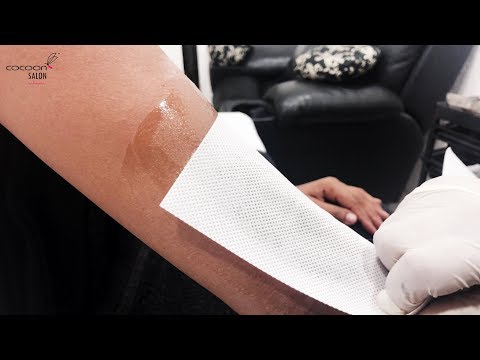 For more infomation >> Hot Wax | Normal Wax | Hot wax Hands | Cocoon Salon - Duration: 7:16.

 For more infomation >> 5 качеств женщины, о которой мечтает каждый мужчина - Duration: 12:06.
 For more infomation >> Las palabras del Espíritu Santo | Dios mismo, el único (IV) La santidad de Dios (I) Parte 1 - Duration: 23:00.

 For more infomation >> Трасса А107 (ММк) внутр. [ ✕ А104, Подосинки - Ногинск, ✕ М7 ] - Duration: 40:22.

 For more infomation >> 【阿湯哥商店診斷365】 第5集 銷售情況不如預期 - Duration: 2:01.

Không có nhận xét nào:
Đăng nhận xét